Bu rehber, Ubuntu 22.04 x64 üzerine LiveKit sunucusunu kurmak isteyenler için adım adım açıklanmıştır. Kurulum tamamlandığında, kendi LiveKit WebRTC sunucunuzu çalıştırabilirsiniz.
Cloudflare Point A record to server IP ipv4 example: 66.44.11.88

Login to server with root user
Paste
sudo apt update && sudo apt upgrade -y
Paste
sudo apt install -y apt-transport-https ca-certificates curl software-properties-common
curl -fsSL https://download.docker.com/linux/ubuntu/gpg | sudo gpg --dearmor -o /usr/share/keyrings/docker-archive-keyring.gpg
echo "deb [arch=amd64 signed-by=/usr/share/keyrings/docker-archive-keyring.gpg] https://download.docker.com/linux/ubuntu $(lsb_release -cs) stable" | sudo tee /etc/apt/sources.list.d/docker.list > /dev/null
sudo apt update
sudo apt install -y docker-ce
Paste
sudo systemctl start docker
sudo systemctl enable docker
paste
sudo docker --version
paste
sudo curl -L "https://github.com/docker/compose/releases/download/$(curl -s https://api.github.com/repos/docker/compose/releases/latest | grep -Po '"tag_name": "\K.*?(?=")')/docker-compose-$(uname -s)-$(uname -m)" -o /usr/local/bin/docker-compose
Give Permission paste
sudo chmod +x /usr/local/bin/docker-compose
check docker-compose:
paste
docker pull livekit/generate
docker run --rm -it -v$PWD:/output livekit/generate
select: both egress and ingress
enter your chosen hostname from picture one example: livekit.esunus.com
Don't need turn domain, just put turn.cloudflare.com
for rest of options just select default by pressing enter button
select:
startup shell script
save your information:
example of information:

check directory using ls
you will see your chosen name "livekit.esunus.com"
enter this cd
livekit.esunus.com

edit file init_script.sh
nano init_script.sh
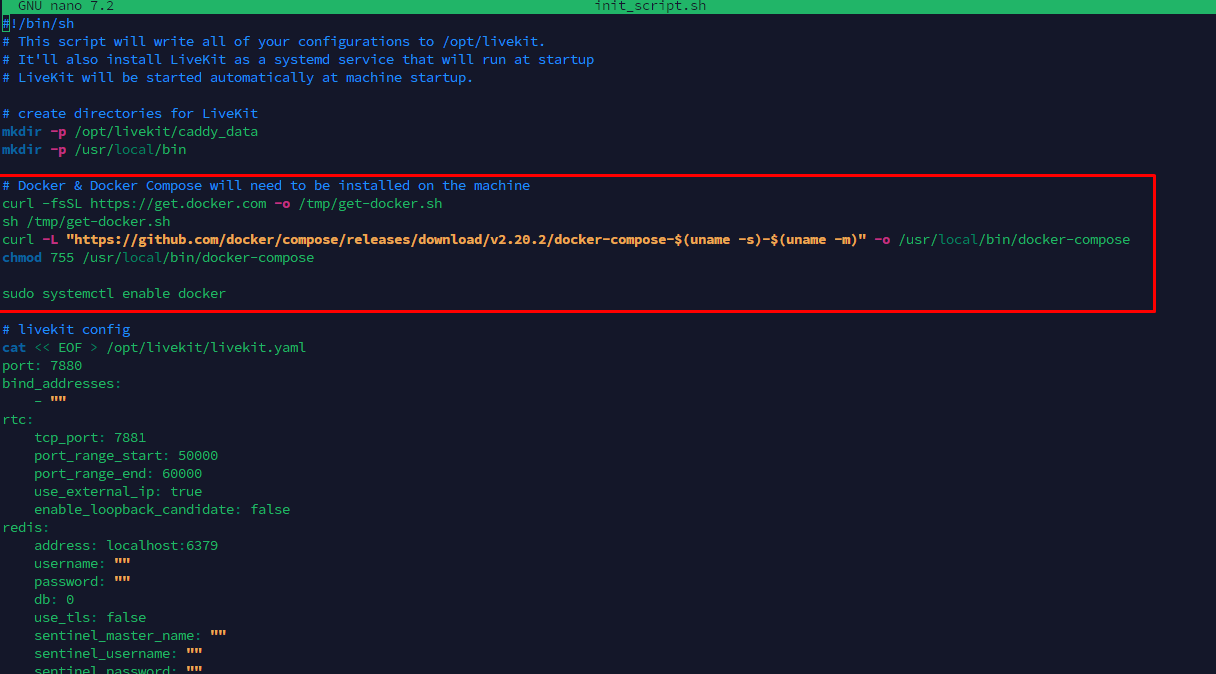
(check image above)
delete the lines that are in the box in picture 3
the following lines need to be deleted:
and do ctrl k
after you delete those lines save the file
ctrl o , enter then ctrl x to close
paste
chmod +x init_script.sh
run the file
paste
sudo bash init_script.sh
allow ports paste
sudo ufw allow 80/tcp
sudo ufw allow 443/tcp
sudo ufw allow 7881/tcp
sudo ufw allow 3478/udp
sudo ufw allow 50000:60000/udp
sudo ufw allow 1935/tcp
sudo ufw allow 7885/udp
sudo ufw reload
sudo ufw enable
sudo ufw status
enable ufw
paste
sudo ufw enable
check status of ufw
sudo ufw status
check that it says status: active
check the status of livekit-docker
paste:
systemctl status livekit-docker
check paste:
cd /opt/livekit
sudo docker-compose logs


paste
cd /opt/livekit
sudo docker-compose down
sudo docker-compose pull
sudo docker-compose up -d

paste
systemctl start livekit-docker
check status:
paste
sudo systemctl status livekit-docker
ctrl c to exit status check
close ssh session
check picture below
open your chosen hostname in browser https://livekit.esunus.com/
and it will return "ok" as you see in the picture
Then your installation is complete
get the information from before:
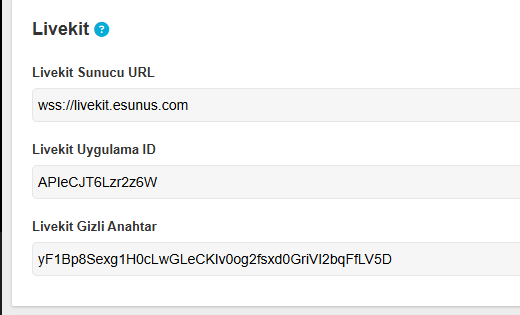
 Copyright © 2026 Tüm Hakları Saklıdır.

 Türkiye (Türkçe)
 Almanya (German)